Private offline notes for Android · Updated August 12, 2026
Private notes that stay on your device.
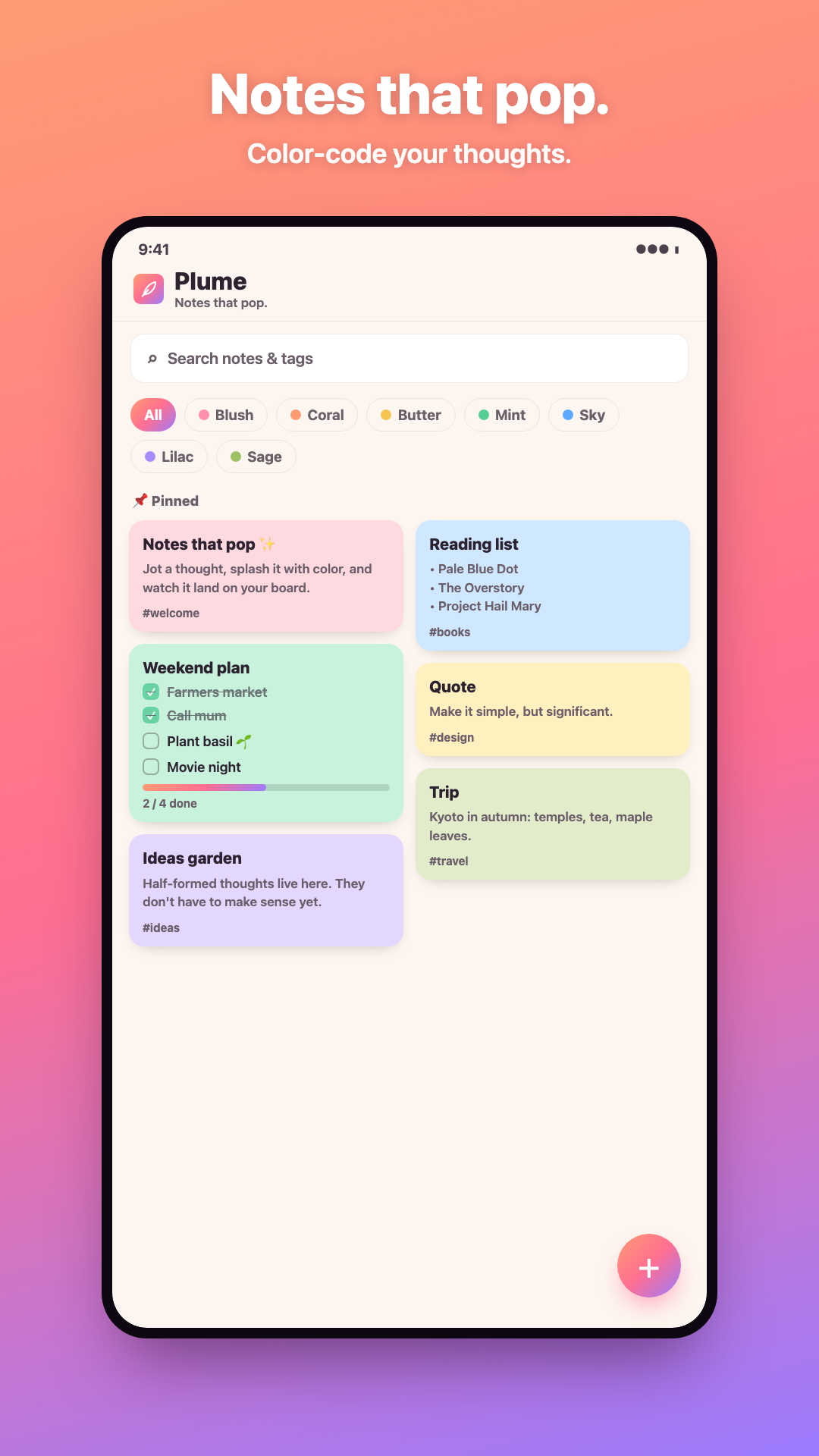
Plume is a local-first visual notes app. Write formatted text and LaTeX, mix tasks with paragraphs, add photos, doodles, and audio, then protect everything with a backup you control—without a Plume account, ads, analytics, or Vigu Labs cloud sync.
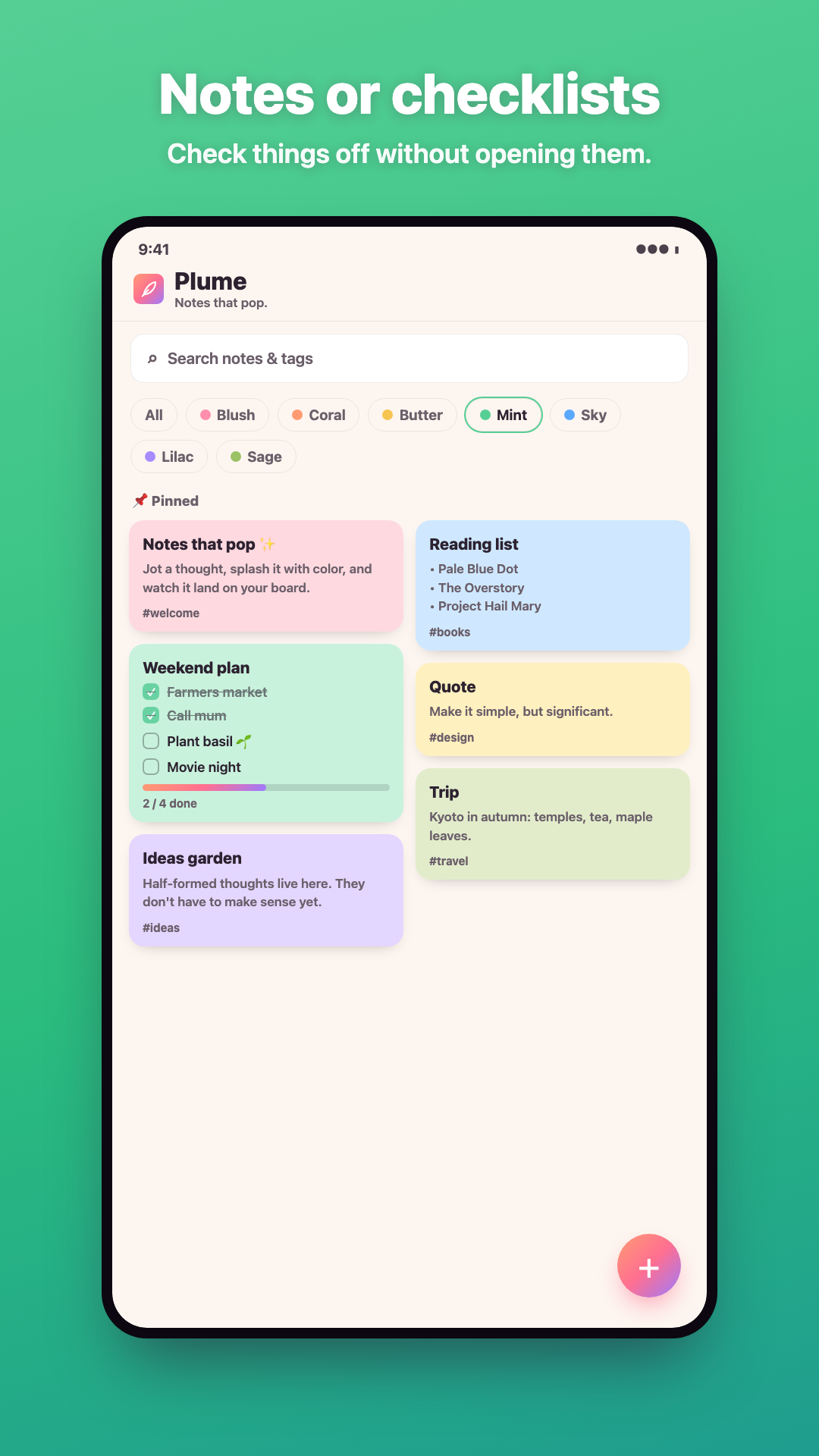
The one-minute tour shows the colorful board, the visual Markdown editor, checklists, attachments, and the private backup flow — everything runs offline on the device.
Every privacy claim here is one you can verify without trusting me.
Plenty of notes apps describe themselves as private. Below is what that means for Plume in checkable terms: an independent scan, the full Android permission list including the awkward one, and a backup format that keeps working if Vigu Labs disappears.
0 trackers, independently checked
εxodus Privacy decompiles the release from Google Play and looks for known tracking libraries. It found none — no analytics, no advertising SDK, no crash reporter.
Photos go through the system picker and a camera intent, so none of these appear in the manifest at all:
Camera
Photo library
Storage
Location
Contacts
Accounts
Pay once, or never
Writing, tasks, attachments, reminders, Markdown export, and complete encrypted backups are free — not a trial. Plume Pro is a single purchase, never a subscription, and creates no Vigu Labs account.
The app shows the price your own store quotes in your own currency, so there is no converted number to be wrong here.
Every Android permission, and the feature that needs it
RECORD_AUDIO is classified dangerous by Android. That label applies to every runtime permission touching sensitive data — every voice recorder on Play carries it. It is here because voice notes exist, it is requested only when you tap record, and no audio leaves the device.
RECORD_AUDIO
Voice attachments. Asked for the first time you tap record — deny it and the rest of the app still works.
INTERNET
Google Play billing for the one-time Pro purchase. No note content, no analytics, no crash reports.
POST_NOTIFICATIONS
Showing a reminder when it fires.
SCHEDULE_EXACT_ALARM
Firing a reminder at the minute you picked instead of whenever Android batches it.
RECEIVE_BOOT_COMPLETED
Re-arming your pending reminders after the phone restarts.
USE_FULL_SCREEN_INTENT
The optional Keep ringing reminder style.
VIBRATE
Reminder alerts.
WAKE_LOCK
Staying awake long enough to deliver a reminder or finish writing a backup.
FOREGROUND_SERVICE
Playing back a voice attachment.
FOREGROUND_SERVICE_MEDIA_PLAYBACK
The Android 14+ subtype required for that same playback.
MODIFY_AUDIO_SETTINGS
Routing audio while recording and playing voice notes.
Typical notes app vs Plume (checkable)
This is not a scorecard against a named competitor — it is the difference between what many notes apps assume and what you can verify on this page or through the εxodus report linked above.
How a typical notes app and Plume differ on four claims you can check yourself
Claim
Typical pattern
Plume
Third-party trackers (εxodus scan)
Typical patternOften present
Plume0 on current report
Camera / storage permissions in manifest
Typical patternCommon
PlumeNone — system picker + camera intent
Account required
Typical patternUsually yes for sync
PlumeNo account — no server
Complete backup without subscription
Typical patternOften paid or cloud-only
PlumeFree manual .plumebackup
Why the εxodus report counts more permissions than this page lists
The list above has 11 entries and the report says 15. Both are right, and the difference is worth explaining before you wonder about it. This page lists what Plume's own manifest declares. εxodus analyses the built APK, whose merged manifest also carries four permissions added by the Google Play Billing library and the Android build tooling: ACCESS_NETWORK_STATE, BILLING, CHECK_LICENSE, DYNAMIC_RECEIVER_NOT_EXPORTED_PERMISSION. None of them is something Plume asks of you at runtime.
εxodus report for app.plume.notes version 1.2.8, created August 13, 2026: 0 trackers, 15 permissions. See the report · read 2026-08-24.
Free vs Plume Pro
The free tier is the whole notes app. Pro adds appearance and convenience extras — never access to your own notes. Google Play shows the one-time price in your currency; there is no subscription.
Free
✓Unlimited notes, tasks, attachments, and reminders
✓Complete manual .plumebackup export and every restore path
✓Password-protected backups (manual and restored from Pro backups)
✓Markdown, text, and image sharing
✓PIN note lock, folders, Archive, Trash, widgets, and 21 languages
✓Light and Dark themes with eight note colors
Pro — paid once
+Automatic password-protected backups
+Styled PDF, offline HTML, and a full browsable offline notes site
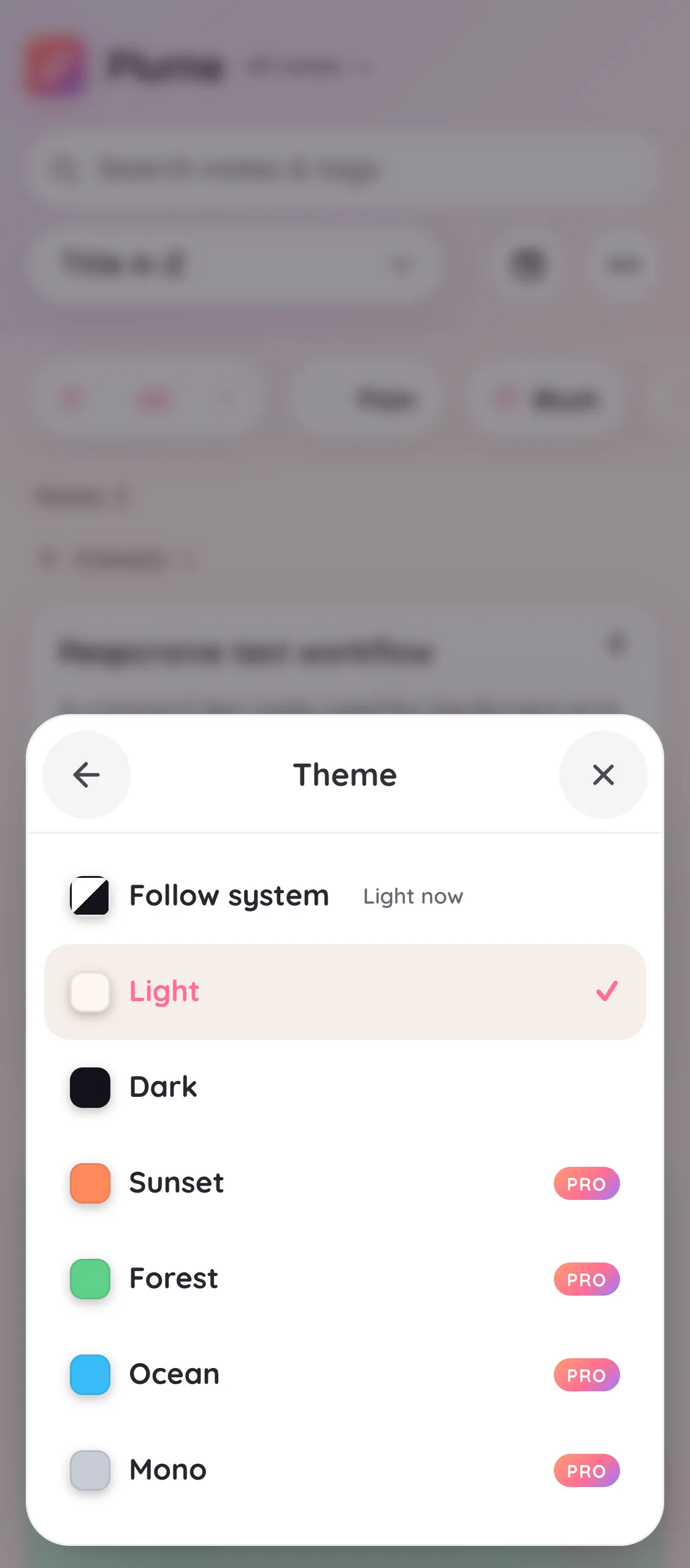
+Sunset, Forest, Ocean, and Mono themes
+Four additional note colors
+A custom app accent color
Backup format at a glance
A complete backup is a portable file you can copy, email, or store in any folder provider. The summary below is enough to verify what a file contains without trusting Vigu Labs.
File extension
.plumebackup
Outer container
ZIP archive (v1) or authenticated encrypted envelope (v2)
Inner payload
Portable notes, attachments, settings, and a manifest
Integrity
SHA-256 hash per attachment byte stream in the manifest
Password
Optional Argon2id + AES-256-GCM envelope; free for everyone
Portability
Restore on any device with Plume — no Vigu Labs account
v1 and v2 envelope details
v2 does not change the inner ZIP layout — it wraps the same v1 bytes in an authenticated encrypted envelope so a shared folder or email attachment cannot read your library without the backup password.
v1 plaintext
A ZIP archive with manifest.json, notes, and attachment bytes
v2 envelope magic
ASCII PLUMEBK2 header wrapping the same v1 ZIP bytes
AES-256-GCM records (standard 1 MiB chunks, 16-byte auth tags)
Password rules
Unicode NFC + UTF-8; 10–256 UTF-8 bytes for new backups
Before you begin
One flexible note format
A note can contain paragraphs, headings, lists, tasks, formulas, and attachments. Plume only labels a note as a checklist when its body contains task lines and no other body text.
Visual editing by default
Most people can format content without learning Markdown. Source mode remains available for precise Markdown and LaTeX editing.
Backups need your attention
Local-first means uninstalling or clearing app data can remove your library. Create a complete backup before changing devices or clearing storage.
01 · Get started
Create your first note
New notes open in the visual editor, so you can begin with ordinary text or start a task list without choosing a permanent note type first.
1
Create from the board. Tap + for a new text note. Long-press + briefly to open a checklist directly—a short progress ring around the button shows the hold, and Plume gives haptic feedback when the checklist opens.
2
Choose text or tasks. Inside a blank text note, start writing a paragraph, or choose Start a checklist on the empty note. You can also pick New checklist from the board menu (⋯). Insert task rows later from the bottom toolbar when you need them.
3
Add structure. Use Aa for headings, lists, emphasis, quotes, code, highlights, or dividers. Add tags and choose a note color when they help you find it later.
4
Finish editing. Use the check mark in the top bar. Plume saves the note to private app storage on this device.
The board shows how many notes are visible, keeps pinned notes together, and combines a Today view with type and color filters inside the current folder.
Search
Search looks through titles, body text, task text, tags, and attachment names as you type. The count changes from the total number of notes to the number of matching results.
Filter
Today shows notes edited today or with a reminder occurrence due today. The type menu offers All types, Text, and Checklist, and the color chips add a third filter dimension. These filters can be combined. All clears Today, type, and color together while preserving the current folder and search query.
Folders
Open the folder name at the top of the board to switch between All notes, Unfiled, and a folder you created. Search, Today, type, and color filters then work inside that scope. A note can belong to one folder at a time.
Sort
Choose last edited, newest, title A–Z, or color. Pinned notes remain in their own section above other notes.
Pinned notes
When more than four notes are pinned, the board starts with a compact preview of the first four. Choose Show all to reveal every pinned note. From the expanded view, choose Collapse to hide the pinned cards and leave a small Collapsed marker beside the pinned count; choose Expand whenever you want them back. This changes only the board view—your pins and their order are not changed.
Archive and trash
Archive finished material without deleting it. Deleted notes go to Trash first, where they can be restored or removed permanently.
Reading view
Tap a card to read the note full screen with rendered formatting and formulas. The header tucks away as you scroll, checklist items stay tappable while you read, and the pencil switches to editing on the same page.
Find in note
In reading view, open More → Find in note. Plume searches the title, tags, body, and visible attachment captions without case sensitivity, highlights every match, and shows your position in the result count. Use the up and down buttons beside the search field to move between matches, then tap close when you are finished.
Multi-select
Long-press a card to select several notes, then archive, delete, recolor, lock, or share them in one step.
Organize with folders
Choose New folder from the folder picker. Folder names can be up to 40 characters, and you can keep up to 100 folders.
Move one note from its More menu, or select several cards and use Move. Creating a note while viewing a real folder files the new note there automatically; All notes and Unfiled do not.
Rename and delete folders from Manage folders. Deleting a folder never deletes its notes: they move to Unfiled.
Tap the folder label on an unlocked card to browse that folder. A locked card does not reveal its folder.
Agenda gathers reminders by time, while On This Day privately resurfaces older notes from matching calendar dates.
Agenda
Open the alarm-clock button in the board header, or choose Agenda from the menu. Plume gathers reminders from active and archived notes and groups their next occurrence into Overdue, Today, Tomorrow, Next 7 days, and Later. Repeating and snoozed reminders are labelled in the list.
Open the note
Tap a reminder row to read its note. Closing the note returns to the same place in Agenda, even if the reminder changed while it was open.
Clear with undo
The red crossed-alarm button clears the whole reminder, including its repeat schedule; it does not delete the note. Use Undo in the toast if you cleared it by mistake.
On This Day
On This Day is a local-only look back at older notes. Until your library contains a note at least one year old, it can surface notes from three or six months ago; after that it uses matching calendar dates from earlier years. Notes newer than 30 days do not appear as memories.
Open the card on the board or choose On This Day from the menu. Archived notes can appear; trashed notes cannot.
Hide one note or an entire historical date when you do not want it to resurface. You can also dismiss the board card until tomorrow.
Locked memories show no title until you open and unlock the note. On This Day never sends the selection or note content to Vigu Labs.
Visual mode and source mode edit the same Markdown document. Switch modes when you need direct control; you do not create a second copy.
Visual mode
The default editor directly shows paragraphs, H1–H3 headings, bullet and numbered lists, tasks, bold, italic, underline, strikethrough, highlights, quotes, code, dividers, links, and formulas. Select Aa to open formatting tools.
Source mode
On a text note, use the code-style button in the top bar to switch between the rendered document and its Markdown/LaTeX source. The icon changes to show the destination mode. The visual formatting button is unavailable while editing source, because formatting is typed directly there.
Inline formula
$2^3$
Renders 2³ inside a sentence.
Display formula
$$\n\frac{a}{b}\n$$
Renders a formula on its own line.
Links
Links work in both visual mode and source mode. They serialize as standard Markdown [text](url) and appear as blue, underlined text in the editor, reading view, and board card previews.
1
Insert a new link. Tap Aa, then the chain icon. Enter the link text and URL, then choose Insert. If you selected text first, Plume uses that selection as the default link text.
2
Edit an existing link. Place the cursor inside a link (or select one in source mode), then open the link sheet from the chain icon again. The title changes to Edit link and the button reads Update. Changing the text or URL replaces the same link—it does not insert a second one.
3
Remove a link. While editing an existing link, choose Remove link at the bottom of the sheet. The label text stays; only the link mark or Markdown wrapper is removed.
Paste a URL
In visual mode, paste a single URL onto selected text to turn that text into a link. Paste a URL with nothing selected to insert the URL as linked text.
Type a URL + space
In visual mode, type a web address such as https://example.com or www.example.com, then add a space. Plume links it automatically. This does not run inside inline code or code blocks.
Accepted URL forms
Plume accepts https://, http://, mailto:, and tel: links. Bare email addresses, phone numbers, www. hosts, and simple domain names such as example.com are normalized when you confirm the sheet.
Open a link while reading
In reading view, tap a link to open it in your browser or the appropriate app (mailto: and tel: included). Links are not followed while you are editing—the editor keeps the caret on the link instead.
Tasks can form a focused checklist or live alongside prose in a richer note.
Insert a task with Start a checklist on a blank note or the task button in the editor toolbar.
At the end of a task, tap Return on the keyboard to add the next task. On an empty task row, Return starts an ordinary paragraph, so you are never trapped in a list. Checkboxes remain interactive in supported reading and board views.
In the checklist editor, drag the handle to move a task. This changes the saved order, not just the current display.
A pure checklist keeps checklist-focused controls. Source and rich-format controls are intentionally unavailable there.
Attachments live in private file storage rather than inside the note database, keeping the board and editor responsive as a library grows.
Photos
Take a photo or choose one from the library. Preview it, add a caption, change its fit, reorder, replace, crop, rotate, annotate, mosaic, or remove it.
Doodles
Draw with the canvas tools and colors, then save the drawing into the note. Choosing a color closes its palette so the first stroke reaches the canvas.
Audio
Record a short voice attachment, then play, reorder, or remove it from the note. Microphone access is requested only when recording starts.
Reminders and the PIN note lock solve different problems: one surfaces a note later, while the other hides content from casual on-device viewing.
Reminders (free for everyone)
Every note can have a reminder. Set a one-time reminder or repeat it daily, weekly, or monthly. Notifications can open the note, complete the reminder, or snooze it for one hour, and the optional Keep ringing style repeats the alert until it is handled, with a 30-minute safety limit on the sound. A reminder health check reports device status and offers a test notification that arrives ten seconds later. On Android, a disabled exact-alarm permission can delay precise reminders; follow the in-app Reminder permission action when the warning appears.
PIN note lock
The PIN is 4 to 12 digits. A locked note still appears on the board with its title and a Locked badge, but its body preview, tags, and reminder chip are replaced by that badge, and opening it asks for the PIN. Home-screen widgets hide the title too. Board search still matches a locked note by title; its body, tags, and attachment names are excluded until you unlock it. The PIN is a local viewing gate—not file encryption and not the password used for encrypted backups.
A complete .plumebackup archive carries notes and local attachments. It is the correct tool for moving devices, reinstalling, or recovering a whole library.
Recommended: protected v2
Free for every user. The archive is encrypted with the backup password you create. Plume cannot recover a forgotten password.
Optional: plaintext v1
Free and compatible, but readable by anyone who obtains the file. Use it only when you deliberately need an unencrypted archive.
Create a manual backup
1
Open backup tools. Open Plume's menu, choose backup, then choose Create full backup.
2
Choose protection. Use the recommended password-protected format and enter a password you can retain. The Plume note-lock PIN is not reused.
3
Choose a destination. Save the .plumebackup file through the system file picker. Confirm that the destination is available before clearing or moving the old device.
Restore a backup
1
Select the archive. Choose Restore and select a .plumebackup file. Enter its backup password when required.
2
Wait for validation. Plume checks the archive before changing the current library. A wrong password, invalid file, or cancellation leaves current notes unchanged.
3
Choose Replace or Merge. Replace is recommended for a clean full restore; it takes a rollback snapshot before removing the current library. Merge is an advanced option that combines the backup with notes already on the device, resolving notes with matching IDs in favor of the most recent edit.
Automatic secure backup (Pro)
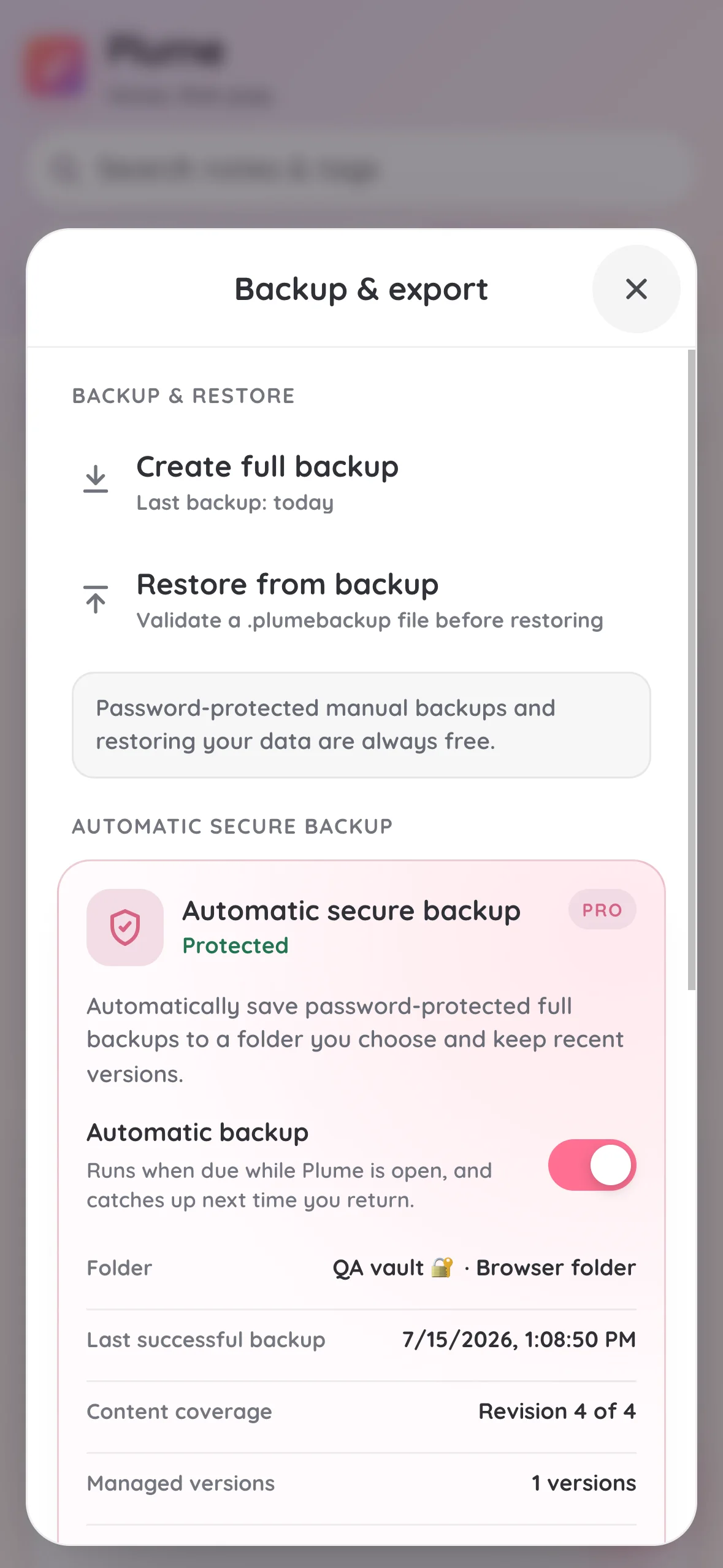
Choose a writable folder, create a backup password, select daily or weekly frequency, and retain 3, 7, 14, or 30 backups. Plume creates the first protected backup immediately. Later backups run when due while Plume can run, or catch up the next time the app opens; this is not real-time sync or an exact operating-system background schedule.
1
Open setup. In Backup & export, open Automatic secure backup and start setup while Plume Pro is active.
2
Choose folder and password. Pick a writable local or cloud-provider folder, then create a password Plume cannot recover. Prefer a dedicated folder such as Documents/Plume.
3
Finish with the first backup. Choose Daily or Weekly and how many recent versions to keep. Setup completes only after the first backup is written and verified.
The status rows are easy to misread as note counts. They describe library versions and backup files—not how many notes you have on the board.
Status meanings
Protected
Automatic backup is on, the folder and password key are available, and the latest successful automatic backup already covers the current library. Nothing is waiting to be backed up right now.
Unbacked-up changes
You changed the library after the last successful automatic backup. Plume will create another backup when the schedule is due and the app can run, or when you tap Back up now.
Due
The library has changed and the daily or weekly schedule says another backup should run. Opening Plume in the foreground usually lets it catch up quietly.
Paused / permission / failed
The switch is off, the folder permission was lost, the backup key is unavailable, storage is full, or the last attempt failed. Fix the warning on the card before expecting new automatic files.
Content coverage: Revision X / current Y
Plume keeps a simple rising number for library changes. Editing note text, checking tasks, changing tags or attachments, pinning, archiving, moving notes to trash, restoring them, and similar saves can advance the current revision.
Revision X is the library version captured by the last successful automatic backup.
Current Y is the library version on the device right now.
When X and Y match, the card can show Protected. When Y is higher, there are unbacked-up changes.
These numbers are not note counts. Four notes with one pinned can still show Revision 7 / current 7 after several saves and setup steps.
Managed versions: N copies
This counts verified automatic backup files that Plume still manages for retention—for example three Plume-auto-….plumebackup files. It is not the number of notes inside each file.
Each successful automatic or first-setup backup can add one managed file in the current folder.
Changing the backup folder stops managing the previous destination. Older files stay on disk, but the card count resets until the new folder's first verified backup. Retention only deletes managed files in the active folder.
Retention (3 / 7 / 14 / 30) only removes older managed files after a newer verified backup exists. It does not delete files you renamed yourself or backups outside Plume's managed list for the current folder.
Each managed file is a full library backup: active, archived, trashed, and locked notes are included with their flags.
Folder, schedule, and Back up now
Folder
Shows a short relative path when the system provides one, plus a place label such as On this device, iCloud Drive, or Google Drive. It is a reminder of where files go, not a guarantee of a full system path.
Schedule
Daily means at most one successful changed-content backup per local day, and never sooner than twenty hours after the last one. Weekly means after seven days. Unchanged libraries do not create duplicate files.
When automatic backup runs
Catch-up happens while Plume is open and visible. It waits if you are editing, typing in a field, or viewing a dialog, then continues quietly without a progress sheet. It does not run only because the app is backgrounded.
Back up now
Available when setup is complete, automatic backup is enabled, and the library is not already Protected. If the library has not changed since the last successful automatic backup, the button stays disabled on purpose.
Backup preserves an entire library; export and share are for presenting or sending selected note content.
Markdown (Free)
Export portable source text. Visual formatting and LaTeX stay represented as Markdown syntax. A locked note is written out as its title followed by a Locked marker instead of its content — unlock it first if you want the content included.
Styled PDF (Pro)
Creates a print-friendly document from the notes you selected, with text, formulas, photos, and doodles. Audio attachments are listed but are not playable inside a PDF.
Offline HTML package (Pro)
Creates a self-contained package of the notes you selected for a browser, including local photos and doodles plus playable audio files.
Offline notes site (Pro)
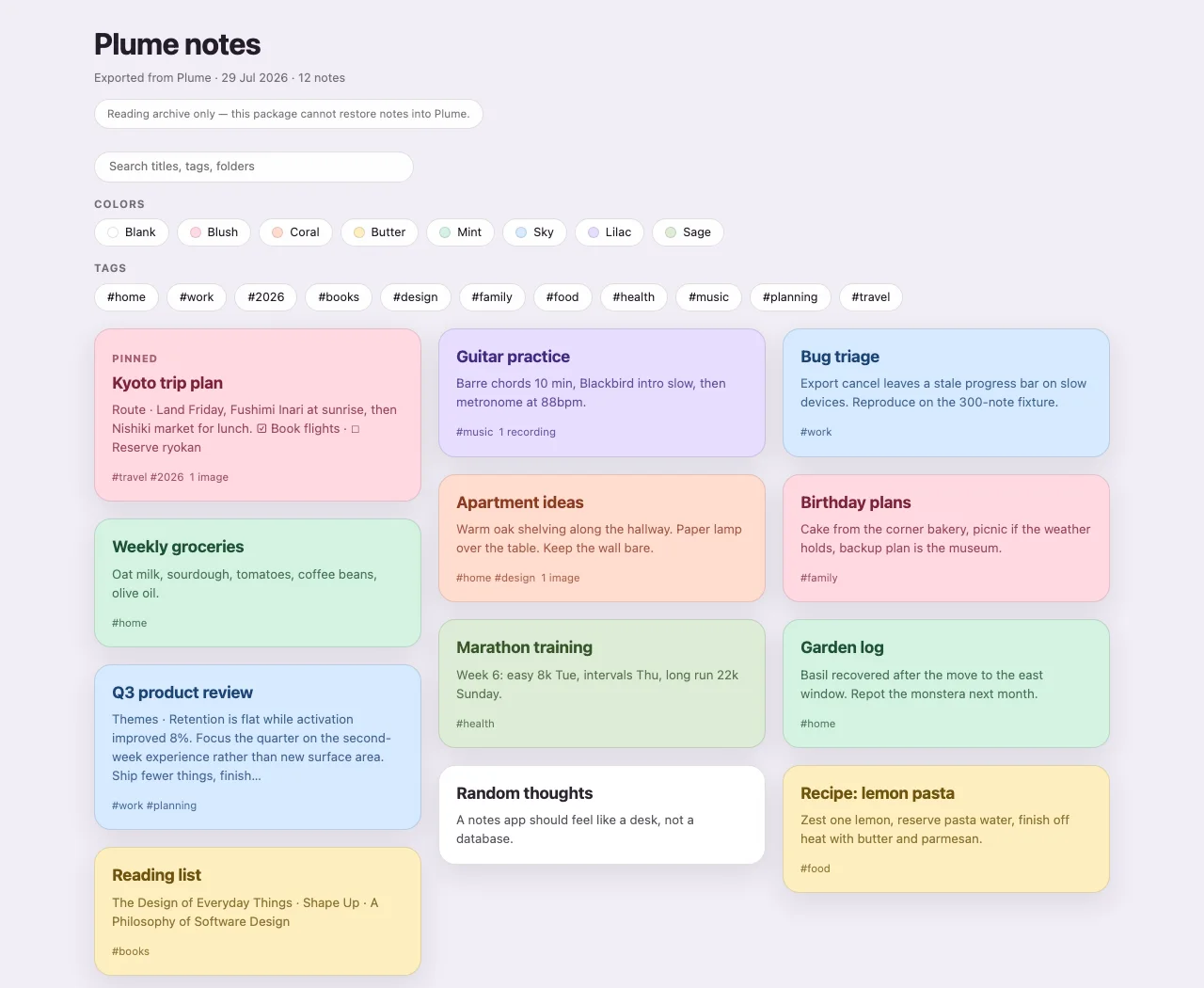
Exports the whole library as a browsable static site with its own search and color, folder, and tag filters. Archived and locked notes are included only if you tick those options, and locked notes are limited to titles. It is a reading archive: it cannot restore notes back into Plume, so it is not a backup.
System sharing
Share a note as text, a rendered image, Markdown, or a styled document. Separately, open an image attachment, then choose Share as image to send that one file. These are sharing actions; they do not run the selected-text assistant workflow.
Bring your own assistant for selected text
Plume does not pretend to be an AI service. Instead, it gives one carefully selected passage a doorway to the tools already on your phone. You decide what leaves the note, what you want done, and which app receives it.
1
Select only what matters. Select a non-empty passage in reading view, the visual editor, or Markdown source. A temporary Use in another app action appears. This workflow accepts text only—not images or attachments—and the rest of the note, its title, tags, and folder stay out of the request.
2
Describe the job. Choose Polish, Make concise, Fix grammar, write a one-time custom request, or send the passage as-is. Plume prepares a focused plain-text request while preserving the language and meaning of your original.
3
Choose the intelligence. The system app chooser lets you send that request to an AI assistant, writing tool, translator, email app, or any other compatible app you trust. Plume does not choose or rank providers for you.
4
Keep the final say. The other app returns or displays its result under its own rules. Copy back only what you want: Plume never reads the result, watches the clipboard, or silently replaces your original words.
Plume also supports home-screen widgets and share-to-Plume on supported platforms. Widget content may be visible to anyone who can see the device home screen.
The free app remains complete. Pro removes repetitive backup work, turns notes into polished offline publications, and adds deeper personalization.
Free keeps the complete notes app. Pro pays for less maintenance, more polished ways to present your work, and a Plume that feels more yours.
Worry less
Backups that take care of themselves
Choose a folder you control, protect it with a separate password, and let Plume catch up whenever the app is open and a backup is due. Keep recent versions instead of trusting one file that may already contain a mistake.
✓Daily or weekly cadence, with 3, 7, 14, or 30 managed versions.
✓Password-protected full-library files in your chosen folder.
✓Visible Protected, Due, and attention states—never silent cloud sync.
Manual password-protected backups and every restore path remain free. Pro automates the routine; it does not hold recovery hostage.
A real Protected state in Plume—not a cloud-sync promise.
Share beautifully
Turn notes into something worth presenting
Export a styled PDF, a self-contained offline HTML document, or your whole library as a browsable notes site with search and filters. The result works without a Plume account or Vigu Labs server and stays read-only, so nobody mistakes it for a backup.
A real exported library: searchable, portable, and fully offline.
Four complete themes, plus extra colors and your own accent.
Make it yours
Change the mood, not just the wallpaper
Sunset, Forest, Ocean, and Mono are complete app themes. Pro also adds Peony, Teal, Amber, and Violet note colors and lets you choose a custom accent for controls and highlights.
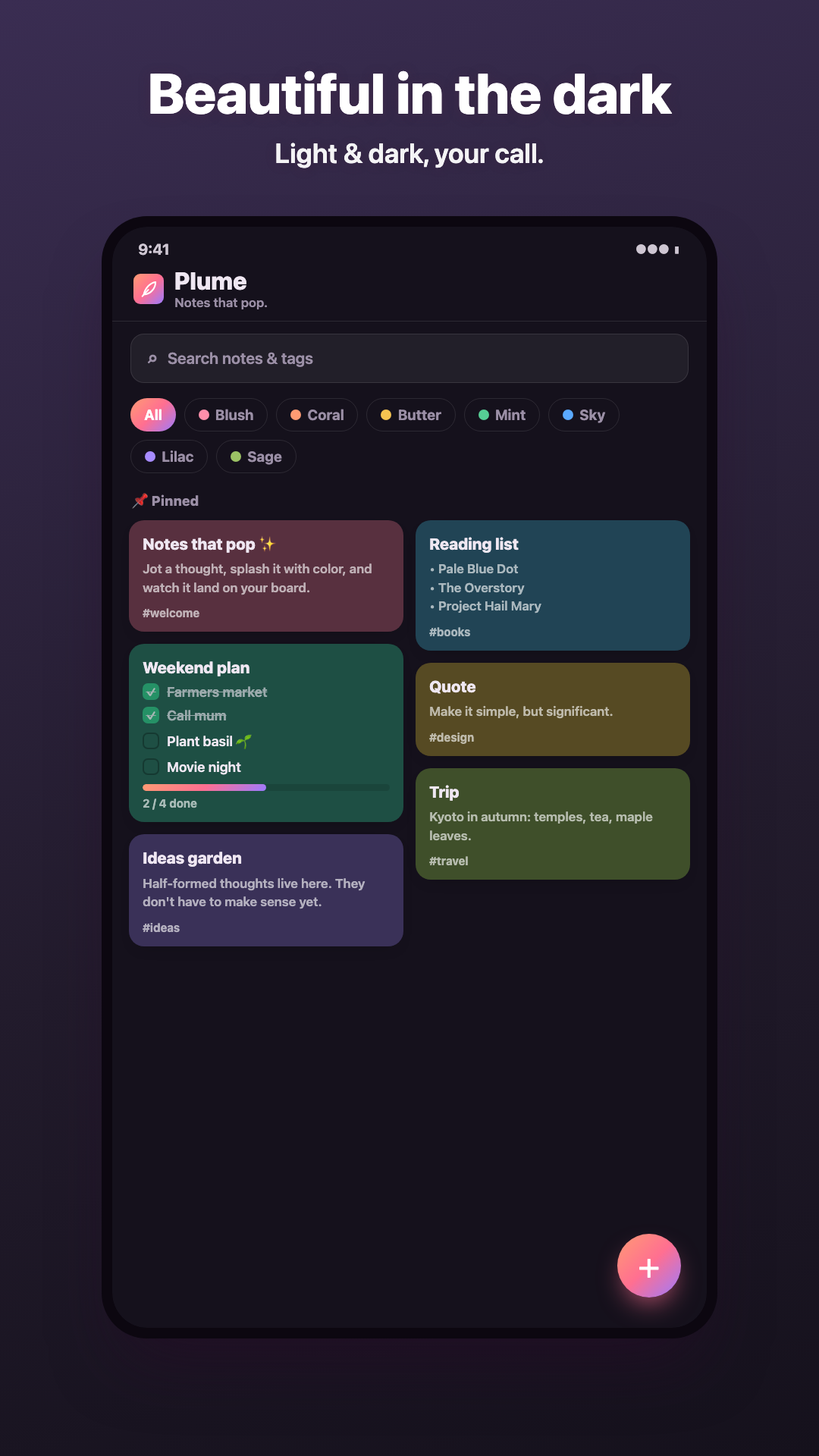
Light, Dark, eight note colors, and following the system remain available to everyone.
Everything the one-time upgrade adds
+Automatic password-protected backups
+Styled PDF, offline HTML, and a full browsable offline notes site
Plume works without sending note content to Vigu Labs, but local ownership also makes the user responsible for backups and chosen sharing destinations.
Plume does not require
A Vigu Labs account, an internet connection for ordinary note use, ads, analytics, or a Vigu Labs notes server.
Plume does not provide
Real-time cross-device sync, shared notebooks, collaboration, or a Vigu Labs web account for browsing notes.
Your device controls
Local app storage, permissions, notifications, operating-system backups, widgets, and what happens when app data is cleared.
Other providers control
Any destination used for sharing, file export, cloud-folder backup, app-store purchase, or device-level backup.
Start with the symptom below. When contacting support, include the app version, device model, operating-system version, and the steps that reproduce the issue.
A formula is shown as ordinary text
Add LaTeX delimiters: use $…$ inline or $$…$$ on its own block. For example, $2^3$ renders as math; 2^3 does not.
An attachment cannot be added
For audio, check the microphone permission. Otherwise check available device storage, the per-file limit, and the note's 24-item / 50 MiB total limit. Photos arrive through the system picker and your camera app, so Plume itself holds no camera or storage permission — if the camera will not open, grant its permission to the camera app rather than to Plume. For a large photo, choose a smaller image or edit it before importing.
A reminder may be delayed
On Android, follow the in-app reminder-permission warning and allow precise alarms when the device offers that setting. Battery-saving rules can also affect delivery.
An automatic backup is not current
Confirm Pro is active, the selected folder is still writable, and Plume has opened in the foreground since the backup became due. Automatic backup catches up while the app is visible; it is not live sync and does not promise exact background timing.
Revision X / current Y looks unrelated to my note count
Those numbers are library-change revisions, not note counts. See Auto-backup status. Matching numbers mean the latest automatic backup already covers the current library.
Managed versions is higher than expected
Managed versions count only verified automatic backups in the current folder. Changing folders resets that count after the new destination is selected; complete the first backup there to see 1 version again. Older files in previous folders remain on disk but are no longer managed.
Back up now is disabled
The button stays disabled while the status is Protected, while a backup is running, or while automatic backup is turned off. Edit a note or wait until the card shows unbacked-up changes or Due.
The backup password is rejected
Check the exact password used when that archive was created. It is independent from the note-lock PIN and cannot be reset by Vigu Labs. Cancelling restore leaves current notes intact.
A link does not open while editing
That is intentional. Finish editing or switch to reading view, then tap the link. Plume keeps the caret on links in the editor so you can edit them without leaving the note.
A pasted or typed URL did not become a link
Autolink and paste-to-link run only in visual mode, not in source mode or inside inline code or code blocks. For a typed URL, include the trailing space that completes the autolink rule. For anything else, use the link sheet or write [text](url) in source.
A board card shows Markdown markers
Current Plume renders card previews. Finish editing, reopen the board, and make sure the latest app version is installed. If raw markers remain, send reproducible steps to support.
Email support@vigulabs.com. Do not send private note contents unless you intentionally want support to inspect that example.
Plume follows your device language by default. Connect an external keyboard to Android only if you want the optional shortcut list at the end of this section.
Plume includes 21 runtime languages. By default it follows your device language; open Settings and choose a supported language manually when you prefer a different interface language.
On the board
N
Create a new note
/
Focus board search
D
Switch the light or dark appearance
Esc
Close the current panel or dialog
Enter / Space
Open a focused note card
N, /, and D act on the board only when no note, panel, dialog, or text field has focus.
While reading a note
/
Find text in the open note
E
Edit the open note
S
Open sharing
C
Open note colors
M
Open or close the More menu
P
Pin or unpin the note
I
Open note information
These use plain keys only while focus is outside a text field and no blocking panel is open. On phone, use the on-screen buttons instead—for example More → Find in note rather than /.
While editing
Ctrl / Cmd + S
Finish editing and return to reading
Ctrl / Cmd + K
Insert or edit a link
Ctrl / Cmd + Z
Undo
Ctrl / Cmd + Shift + Z
Redo
Ctrl / Cmd + Y
Redo
Enter
Create the next task at the end of a task row
For links, undo, redo, and save, use the on-screen toolbar and top-bar buttons on phone. The keyboard shortcuts above are shortcuts of last resort for an attached keyboard.
A current protected backup is the best safety net before moving devices, clearing storage, or trying a large restore. If the guide does not answer your question, contact Vigu Labs support.